
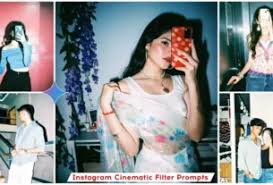
A new editing aesthetic is taking over Instagram and TikTok feeds worldwide. Known as the “Cinematic Flash” or “Flash III” filter, this effect mimics the look of high-end, direct-paparazzi flash photography—illuminating the subject’s face and skin tones while casting the background into a high-contrast, moody, cinematic palette . It has become the go-to look for creators wanting to make standard mobile photos appear as if they were shot in a professional studio or by a nightlife photographer.
But as the trend explodes, a critical question emerges: Which tool actually delivers a professional result without distorting your identity? Currently, two major players dominate this space: Google Gemini (using its advanced AI image editing models) and Instagram’s native Flash filter.
While both can achieve that viral flash look, they operate very differently. One offers unparalleled creative control but requires a learning curve; the other is instant but comes with a hidden catch. This article breaks down the strengths, weaknesses, and step-by-step methods for each, so you can decide which “flash” filter is right for you.
Understanding the Viral “Cinematic Flash” Aesthetic
Before comparing tools, it is essential to understand why this particular look has gone viral. The high-contrast flash effect pulls the viewer’s eye directly to the subject’s features, making the image incredibly “Reel-friendly” . It transforms flat, poorly lit images into dynamic shots that look like they belong in a fashion magazine.
The aesthetic typically includes:
-
Bright, illuminated skin tones against a darker background.
-
Increased contrast and sharpness that mimics old-school digital or film cameras .
-
A moody or nostalgic color palette that feels both vintage and premium.
This demand has pushed both social media platforms and AI companies to develop tools that replicate this specific studio lighting effect.
Instagram’s Flash Filter: The Native, One-Tap Solution
Instagram knows how to keep users hooked with exciting, easy-to-use updates. The Instagram Flash III filter is the platform’s native answer to this trend. It is designed to be a quick, retro-inspired aesthetic that improves brightness, contrast, and sharpness with a single tap .
How to Use Instagram’s Native Flash Filter
For users who want speed and convenience, the native Instagram filter is the most straightforward path.
-
Step 1: Add your photo to Instagram Stories.
-
Step 2: Tap the effects icon (the smiling face) and click the magnifying glass to browse the effect library .
-
Step 3: Search for “Flash” or “Flash III” .
-
Step 4: Select the filter and apply it to your image .
The Hidden Catch: AI Face Distortion
While the native filter is fast, it has a significant drawback. Many users have noticed that Instagram’s version often alters facial features . This happens because the filter uses machine learning to “optimize” the image. While it adds lighting effects, it often subtly reshapes noses, jawlines, or smooths skin to the point where users look noticeably different .
-
The Issue: The AI interference can make the photo look unnatural or inauthentic.
-
The Fix: To avoid this, do not use the “Restyle” button. Instead, manually search for the filter in the effect library as described above. Additionally, try applying the filter to darker photos; in low-light images, the AI focuses on brightness rather than facial detection .
Google Gemini: The Professional AI Editor
For those who are not satisfied with a simple one-tap solution and demand professional-grade control, Google Gemini (specifically models like Gemini 2.5 Flash) offers a radically different approach . Instead of just applying a preset, Gemini uses generative AI to literally repaint the lighting of your photo based on text prompts .
How to Use Google Gemini for the Flash Effect
This method requires a bit more effort but yields significantly better results for professional use.
-
Access the Platform: Go to the Google Gemini interface (such as AI Studio).
-
Upload Your Photo: Use a high-quality half-body or portrait photo. The AI preserves the background and clothing, so ensure those elements are already good .
-
Input the Prompt: Use specific prompts like “Flash 1,” “Flash 2,” or “Flash 3,” or describe the lighting you want (e.g., “Add dramatic direct flash lighting, high contrast, illuminate the skin, keep the background dark”).
-
Refine: If the first result isn’t perfect, regenerate the image two to three times .
The Power of Visual Consistency
Recent upgrades to Google’s image models have focused heavily on “person consistency” —keeping the subject’s face identical while changing the environment or lighting . Unlike Instagram’s filter, which can morph your face, Gemini aims to keep your identity intact.
-
Object Removal: Gemini can remove unwanted objects from the background while keeping the subject perfectly still .
-
Virtual Try-On: You can even change the color of your clothing or add accessories (like a hat) while keeping the “flash” lighting consistent .
Head-to-Head Comparison: Which Looks Better?
Recent showdowns between Instagram Restyle (the AI editing tool) and Google Gemini 2.5 Flash have revealed a clear winner regarding quality .
| Feature | Google Gemini | Instagram Filter |
|---|---|---|
| Facial Consistency | Excellent. Keeps the original face intact while editing lighting . | Poor. Often alters facial structure and features . |
| Background Control | High. Can change background completely (e.g., to Paris or a snowy forest) . | Low. Usually just applies a color grade/contrast to the existing background. |
| Lighting Quality | Professional. Creates dynamic, studio-quality light and shadow . | Standard. Good for social media, but can look flat or artificial. |
| Ease of Use | Moderate (requires typing prompts). | Very Easy (One-tap). |
| Cost | Usually free tier available, or via API. | Free. |
The Verdict: In side-by-side tests, Gemini produced images that were more detailed, clearer, and more vibrant. Instagram Restyle often produced darker images that lacked the specific details requested in the prompt .
Actionable Guide: Choosing the Right Tool for Your Needs
So, which one should you use? The answer depends entirely on your goal.
Choose Instagram’s Native Filter If:
-
You need to edit a photo in under 30 seconds for a quick Story post.
-
You are okay with minor AI touch-ups (or you use the “Effect Library” hack to avoid face morphing).
-
You want the exact same trending look everyone else is using.
Choose Google Gemini If:
-
You are building a professional portfolio or posting high-stakes content (influencer campaigns, branding).
-
You want to keep your natural facial features intact while adding dramatic lighting.
-
You need to edit the background or remove clutter from the shot .
-
You are willing to spend 2-3 minutes tweaking a prompt to get a truly unique, high-end result.
Pro Tips for the Best “Flash” Results
Regardless of which tool you choose, these tips will ensure your final image looks truly professional :
-
Start with a Quality Base: The AI or filter cannot fix a blurry or poorly composed photo. Ensure your original image is in focus.
-
Mind the Background: Since AI preserves your original background (unless you prompt it to change), make sure your background is clean or aesthetically pleasing to begin with.
-
Regenerate: If using AI, don’t settle for the first result. Generate the image 2-3 times to get the perfect lighting angle.
-
Low Light Advantage: When using Instagram’s filter, apply it to a darker photo. The algorithm focuses on adding brightness rather than detecting and warping facial features .
Conclusion: Convenience vs. Control
The battle between Google Gemini and Instagram for the best “flash” filter comes down to a classic trade-off: convenience versus control.
-
Instagram wins for speed and ease of use. It is perfect for the average user who wants to participate in a viral trend without hassle.
-
Google Gemini wins for professionalism, fidelity, and creativity. If you want a photo that looks like it was taken by a high-end camera with a real flash—without changing who you are—Gemini is the superior choice.
For creators and professionals, the recommendation is clear: use Google Gemini to generate the base lighting and effects, then use Instagram only for sharing. That way, you get the virality of social media with the quality of a professional photoshoot.